
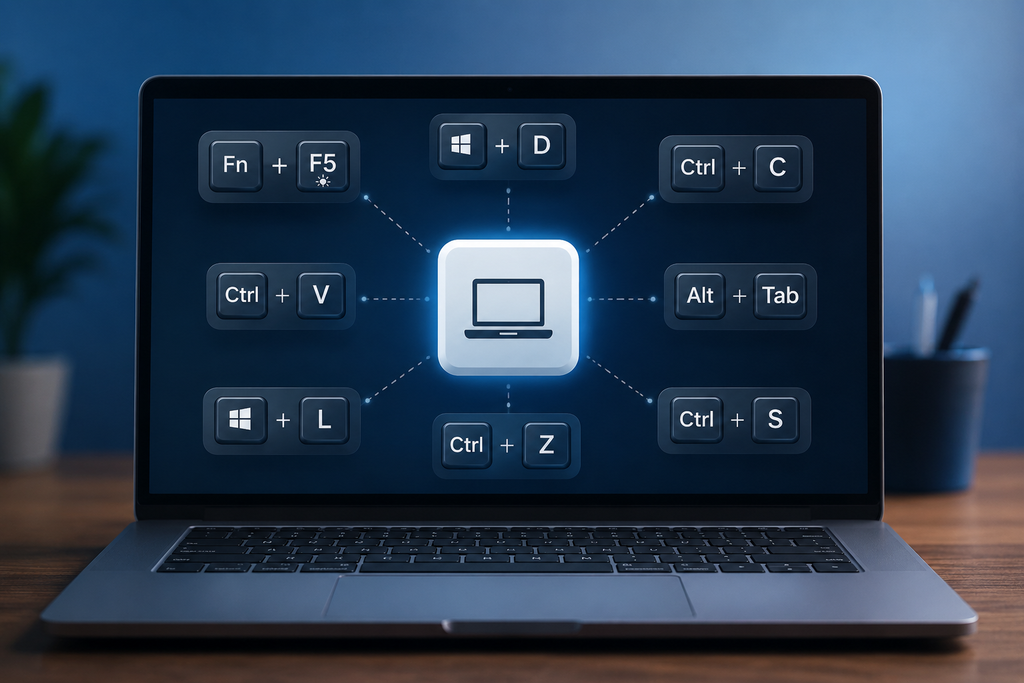
Laptop Shortcut Keys are among the easiest ways to improve productivity and save time while using a computer. Whether you’re working on documents, browsing the internet, attending online meetings, or managing files, knowing the right keyboard shortcuts can help you complete tasks faster and more efficiently.
Instead of repeatedly using a mouse, keyboard shortcuts allow you to perform actions instantly with just a few key combinations. This guide covers the most useful Laptop Shortcut Keys for Windows, Microsoft Office, web browsers, and everyday computing.
Table of Contents
- What Are Laptop Shortcut Keys?
- Essential Laptop Shortcut Keys
- Windows Shortcut Keys
- File Management Shortcuts
- Function Key Shortcuts
- Microsoft Word Shortcuts
- Microsoft Excel Shortcuts
- PowerPoint Shortcuts
- Browser Shortcut Keys
- Special Character Shortcuts
- Tips to Learn Shortcut Keys Faster
- FAQ
What Are Laptop Shortcut Keys?
Laptop Shortcut Keys are combinations of keyboard keys that execute commands quickly without navigating through menus. These shortcuts help users improve workflow, reduce repetitive actions, and increase productivity.
For example:
- Ctrl + C = Copy
- Ctrl + V = Paste
- Ctrl + Z = Undo
Mastering Laptop Shortcut Keys can save several minutes every day, which adds up significantly over time.
Essential Laptop Shortcut Keys for Daily Use
The following Laptop Shortcut Keys are useful across almost all applications.
Copy, Paste & Edit Commands
- Ctrl + C – Copy selected content
- Ctrl + X – Cut selected content
- Ctrl + V – Paste content
- Ctrl + Z – Undo last action
- Ctrl + Y – Redo action
- Ctrl + A – Select all items
Save & Search Commands
- Ctrl + S – Save current file
- Ctrl + O – Open file
- Ctrl + N – Create new document
- Ctrl + P – Print document
- Ctrl + F – Find text
- Ctrl + W – Close current tab
These Laptop Shortcut Keys are commonly used by students, professionals, and business users every day.
Windows Laptop Shortcut Keys
Windows provides powerful shortcuts that make navigation faster.
Navigation Shortcuts
- Windows + E – Open File Explorer
- Windows + I – Open Settings
- Windows + D – Show Desktop
- Windows + S – Windows Search
- Windows + L – Lock Laptop
- Alt + Tab – Switch between apps
- Alt + F4 – Close current window
Window Management
- Windows + Left Arrow – Snap window left
- Windows + Right Arrow – Snap window right
- Windows + Up Arrow – Maximize window
- Windows + Down Arrow – Minimize window
- Windows + M – Minimize all windows
These Windows Laptop Shortcut Keys are especially useful for multitasking.
File Management Shortcut Keys
Managing files becomes easier with these commands:
- F2 – Rename file or folder
- Delete – Remove selected item
- Shift + Delete – Permanently delete item
- Ctrl + Shift + N – Create new folder
- Ctrl + Home – Go to beginning
- Ctrl + End – Go to end
Using these Laptop Shortcut Keys can significantly speed up file organization.
Function Key Shortcut Keys (F1-F12)
The Function keys at the top of your keyboard perform special actions.
- F1 – Open Help
- F2 – Rename file
- F5 – Refresh screen
- F11 – Full-screen mode
- Ctrl + F4 – Close active tab
Laptop Function (Fn) Key Shortcuts
Most laptops include hardware controls through the Fn key.
- Fn + Brightness Keys – Adjust brightness
- Fn + Volume Keys – Increase or decrease volume
- Fn + Mute Key – Mute sound
- Fn + Touchpad Key – Enable/disable touchpad
- Windows + P – Change display settings
These Laptop Shortcut Keys vary slightly depending on the laptop manufacturer.
Microsoft Word Laptop Shortcut Keys
Microsoft Word users can improve document editing speed with these shortcuts:
- Ctrl + B – Bold text
- Ctrl + I – Italic text
- Ctrl + U – Underline text
- Ctrl + K – Insert hyperlink
- Ctrl + H – Replace text
- Ctrl + E – Center align
- Ctrl + L – Left align
- Ctrl + R – Right align
- Ctrl + Enter – Insert page break
- Shift + F3 – Change letter case
Microsoft Excel Laptop Shortcut Keys
Excel professionals frequently use these commands:
- Ctrl + T – Create table
- Alt + = – AutoSum
- Ctrl + D – Fill down
- Ctrl + R – Fill right
- F2 – Edit cell
- Ctrl + ; – Insert current date
- Ctrl + Shift + ; – Insert current time
- Ctrl + Page Up/Page Down – Switch worksheets
These Laptop Shortcut Keys make spreadsheet work much faster.
PowerPoint Laptop Shortcut Keys
Create presentations efficiently using:
- F5 – Start slideshow
- Shift + F5 – Start from current slide
- Ctrl + M – New slide
- Ctrl + D – Duplicate slide
- Ctrl + G – Group objects
- Ctrl + Shift + G – Ungroup objects
Browser Laptop Shortcut Keys
These shortcuts work in Google Chrome, Microsoft Edge, and most modern browsers.
Tab Management
- Ctrl + T – Open new tab
- Ctrl + W – Close tab
- Ctrl + Shift + T – Reopen closed tab
- Ctrl + Tab – Switch tabs
Navigation
- Ctrl + L – Select address bar
- Ctrl + D – Bookmark page
- Ctrl + H – View history
- Ctrl + J – Open downloads
- Ctrl + Shift + N – Open Incognito Mode
- Ctrl + R – Refresh webpage
- F5 – Reload page
Special Character Keyboard Shortcuts
- Alt + 0169 – © Copyright Symbol
- Alt + 0174 – ® Registered Symbol
- Alt + 0153 – ™ Trademark Symbol
- Alt + 0176 – ° Degree Symbol
- Alt + 0128 – € Euro Symbol
- Alt + 0149 – • Bullet Point
Tips to Learn Laptop Shortcut Keys Faster
1. Start with Everyday Commands
Learn Copy, Paste, Save, and Undo first.
2. Practice During Real Work
Use shortcuts when creating documents, presentations, or browsing.
3. Reduce Mouse Usage
Try completing common actions using shortcuts instead of a mouse.
4. Create a Personal Shortcut List
Keep frequently used Laptop Shortcut Keys nearby until they become habit.
5. Learn Category-Wise
Focus on Windows shortcuts, Office shortcuts, and Browser shortcuts separately.
Helpful Resources
Internal Links
- How to Take a Screenshot on Laptop
- Task Manager Shortcut Keys
- How to Shutdown Laptop Using Keyboard
- Best Windows Productivity Tips
External Resources
- Microsoft Keyboard Shortcuts: https://support.microsoft.com/windows
- Google Chrome Shortcuts: https://support.google.com/chrome
Conclusion
Laptop Shortcut Keys are powerful productivity tools that help users work smarter and faster. From basic editing commands to advanced Windows and Microsoft Office shortcuts, these key combinations reduce repetitive actions and improve efficiency.
Start by learning a few Laptop Shortcut Keys every day and gradually expand your knowledge. With consistent practice, these shortcuts will become second nature and help you save valuable time throughout your workday.
Frequently Asked Questions
What are Laptop Shortcut Keys?
Laptop Shortcut Keys are keyboard combinations that perform commands instantly without using a mouse.
Which are the most commonly used Laptop Shortcut Keys?
The most popular shortcuts include Ctrl + C, Ctrl + V, Ctrl + Z, Ctrl + S, and Alt + Tab.
How do I refresh my laptop screen?
Press F5 or Ctrl + R to refresh a page, folder, or browser window.
Do Laptop Shortcut Keys work on all Windows laptops?
Most Windows keyboard shortcuts work the same across different laptop brands. Only Fn-key combinations may vary.
Can Laptop Shortcut Keys improve productivity?
Yes. Using Laptop Shortcut Keys helps users perform tasks faster, reduce mouse dependency, and improve workflow efficiency.